

How to Automate Google Review Requests After an Invoice is Paid
Discover how to automatically send Google review requests the moment an invoice is paid. Learn how a structured review automation and request flow can boost your local search rankings and convert more clients.
To automate Google review requests after an invoice is paid, you must set up an automated review automation and request flow that connects your billing software, like QuickBooks Online, to a customer communication platform like Conversify using an integration tool like Zapier. This workflow triggers a review request automatically when an invoice status changes to paid. Setting up this automated review automation and request flow is crucial because research shows that 83% of customers who are asked for a review actually leave one [1], yet busy service businesses often forget to ask manually. By automating this process, you ensure that every paying customer receives a consistent, timely prompt. Furthermore, review recency is a major trust factor, as 73% of consumers only trust reviews written in the last month [1]. Utilizing tools like Conversify to manage these interactions helps maintain a fresh stream of feedback, boosting your local search visibility. You can explore our pricing plans to find a setup that fits your business needs, or read our related articles to learn more about optimizing customer communication.
Why You Need a Review Automation and
Request Flow For any modern service business, online reputation is the cornerstone of growth. While many business owners understand the value of feedback, manually asking every customer is tedious and easily forgotten. Implementing a structured review automation and request flow solves this problem by turning every transaction into a growth opportunity. The potential of simply asking is immense. Industry research indicates that 83% of customers who are asked for a review actually leave one [1]. When you automate this process, you eliminate human error and ensure no customer is missed. This consistent approach is particularly vital for new service businesses and local agencies trying to establish credibility. In fact, data shows that 47% of consumers will skip using a local business if it has fewer than 20 reviews [1]. Automating your invoice-to-review loop is the fastest, most reliable way to cross this critical 20-review threshold. Beyond the sheer volume of reviews, recency plays a massive role in consumer decision-making. A study shows that 73% of consumers only trust reviews written in the last month [1]. If your latest review is from six months ago, prospects may assume your quality has slipped or that you are no longer active. Automating requests immediately after an invoice is paid ensures a steady, fresh stream of feedback that maintains consumer trust. This fresh data does not just convince human buyers; it also feeds search algorithms. Approximately 45% of consumers now use ChatGPT or other AI tools for local recommendations [3]. These AI engines rely heavily on fresh, structured review data to recommend businesses. By keeping your review feed active, you ensure your business remains highly visible in AI-driven search results.
Step-by-Step: How to Automate Google
Review Requests Because QuickBooks Online does not have a native review request feature, businesses must use integration tools like Zapier to bridge the gap between paid invoices and review platforms [4]. By connecting your accounting software with a customer communication tool like Conversify, you can build a seamless, hands-off workflow. Here is how to set up the automation: - Step 1: Connect your accounts. Create a Zapier account and link both your QuickBooks Online account and your Conversify platform.
- Step 2: Set the trigger. Choose QuickBooks Online as the trigger app and select "New Paid Invoice" as the trigger event. This ensures that the workflow only begins once a transaction is successfully completed.
- Step 3: Configure the delay. Industry experts recommend setting a delay of 2 to 24 hours after an invoice is paid or a job is completed before sending a review request [3]. This delay ensures the request reaches the customer while the service is fresh in their mind but avoids interrupting them during the checkout or payment process.
- Step 4: Set the action. Choose Conversify as the action app and select "Send SMS" or "Send Email" as the action event. Map the customer's contact details (phone number or email address) from the QuickBooks invoice directly into the template.
- Step 5: Test and activate. Run a test to ensure the data flows correctly, then turn on the integration to begin automating your review collection.
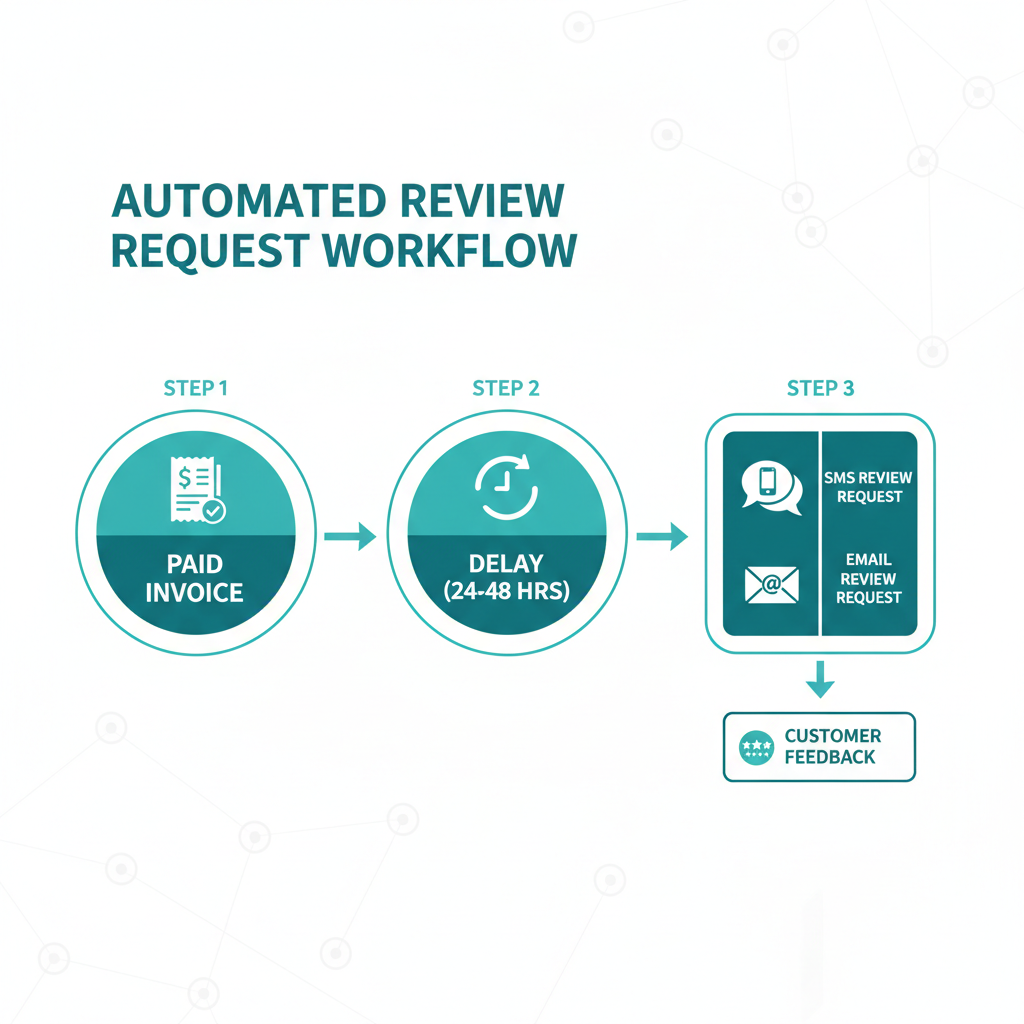 When designing your messaging templates, pay close attention to your communication channels. Target conversion rates for automated review requests should be 5% or higher for email and 8% or higher for SMS [3]. Monitoring these metrics within a centralized business messaging dashboard helps you optimize your templates, wording, and timing over time.
Navigating Google's Review Gating Policies
When building your automated review workflow, compliance with platform rules is non-negotiable. Google's strict policies explicitly prohibit "review gating" [3][6]. Review gating refers to the practice of pre-screening customers to only send review links to those who had a positive experience, while directing unhappy customers to a private feedback form. To comply with Google's guidelines, your automated request flow must trigger uniformly for all paid invoices rather than filtering for only happy clients [3]. Every customer who meets the payment trigger must receive the exact same review request, regardless of their expected satisfaction. While this might seem intimidating, a transparent approach actually builds stronger long-term credibility. It also ensures your business listing remains safe from penalties or review removal by Google.
Maximizing Impact: Google vs.
Other Platforms While it is beneficial to have a presence on multiple review sites, prioritizing your efforts is key to local search dominance. Google hosts approximately 78% of all local business reviews online, making it the most critical platform to target in any automated request flow [1]. Focusing your automated payment triggers on Google reviews yields the highest impact on local search visibility. A high volume of positive, recent Google reviews directly influences your rankings in the Google Local Pack, making your business the obvious choice when local customers search for your services. 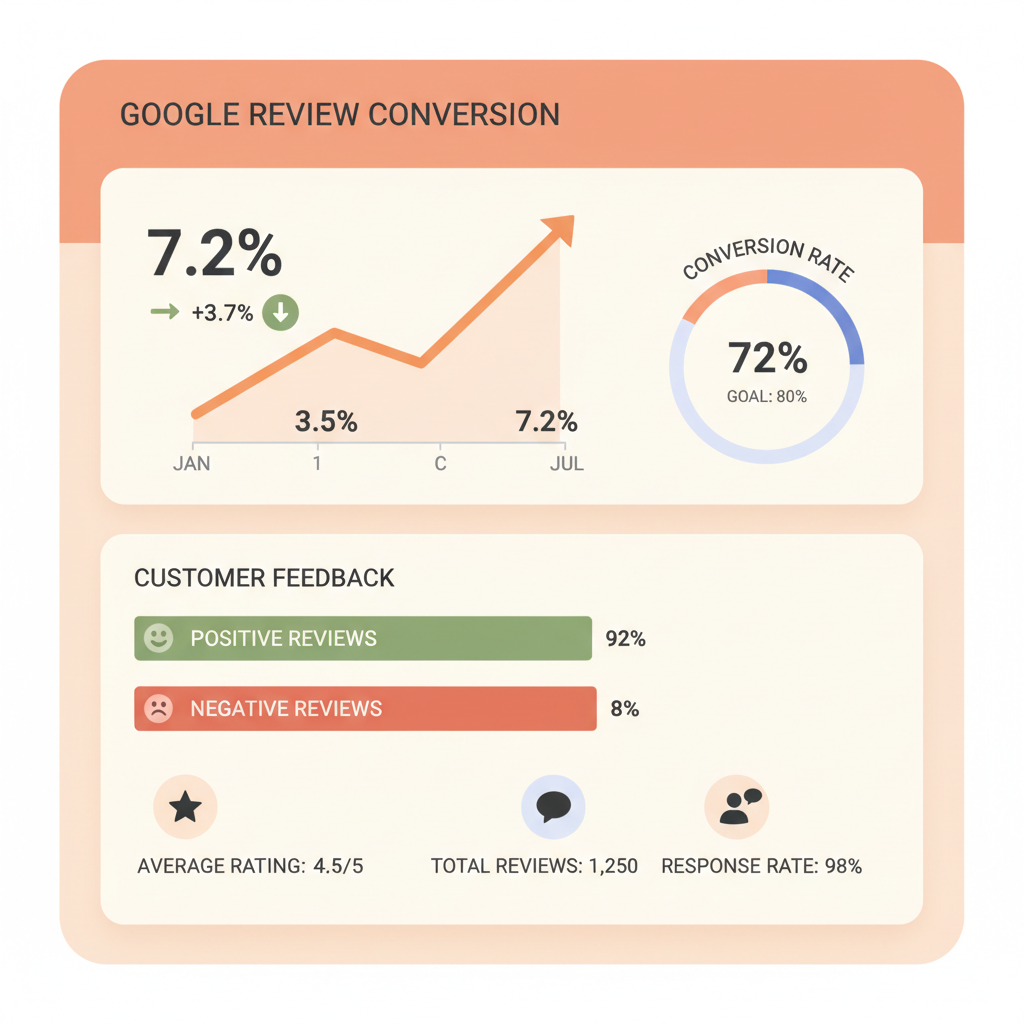
The Power of a Unified Customer Communication
Inbox Generating reviews is only half the battle; how you handle them afterward is just as important. Research shows that 89% of consumers expect business owners to respond to reviews, and 97% of people who read reviews also read the business's responses [1]. Furthermore, responding to every review, rather than ignoring them, lifts Google Business Profile conversions by 16.4% [3]. To manage this effectively without overwhelming your staff, you need a unified customer communication platform. Integrating your review automation with a unified inbox like Conversify allows your team to easily track and respond to every incoming review from a single dashboard. Using a unified platform that alerts staff to new reviews ensures your business can meet high consumer expectations instantly, turning positive feedback into a powerful marketing asset. 
Frequently Asked Questions
Does QuickBooks Online have a native feature to request Google reviews?
No, QuickBooks Online does not have a native review request feature [4]. Businesses must use integration tools like Zapier to connect paid invoices to review management platforms like Conversify [4]. This setup automatically triggers a request when an invoice status changes to paid.
What is review gating and is it allowed?
Review gating is the practice of only asking happy customers for reviews while filtering out unhappy ones. Google strictly prohibits review gating, meaning your automated review automation and request flow must send requests to every customer uniformly [3][6]. Failing to comply can result in Google removing your business reviews.
How long should I wait before sending a review request?
Industry experts recommend setting a delay of 2 to 24 hours after an invoice is paid or a job is completed [3]. This delay ensures the request reaches the customer while the experience is fresh but avoids interrupting them during checkout [3]. It strikes the perfect balance between promptness and convenience.
What are typical conversion rates for automated review requests?
Target conversion rates for automated review requests should be 5% or higher for email campaigns and 8% or higher for SMS messages [3]. Monitoring these metrics within your customer communication dashboard helps you optimize your templates and timing. SMS generally yields higher engagement due to its direct nature.
Why is review recency so important for local businesses?
Review recency is a major trust factor because 73% of consumers only trust reviews written in the last month [1]. A steady, automated stream of new reviews ensures your business remains credible to prospective buyers. It also signals to search engine algorithms that your business is active.
How does responding to reviews affect my business profile conversions?
Responding to every review instead of ignoring them lifts Google Business Profile conversions by 16.4% [3]. Furthermore, 89% of consumers expect business owners to respond, and 97% of people who read reviews also read the business's responses [1]. Using a unified inbox makes tracking and replying to these reviews highly efficient.
Sources
- [1] [WiserNotify Google Review
David Friedman - Founder, Conversify · LinkedIn
David Friedman is a B2B operations leader with over 10 years of experience managing large-scale teams and business processes. After years of working with service businesses and seeing how much time was lost to manual customer communication, he founded Conversify, an AI-powered platform that helps healthcare practices and service providers across Europe automate their patient and client interactions. David built the platform from the ground up, working directly with practicing healthcare professionals to ensure every feature solves a real operational pain point. He is based in Spain.